git reflog: Find and Recover Lost Commits
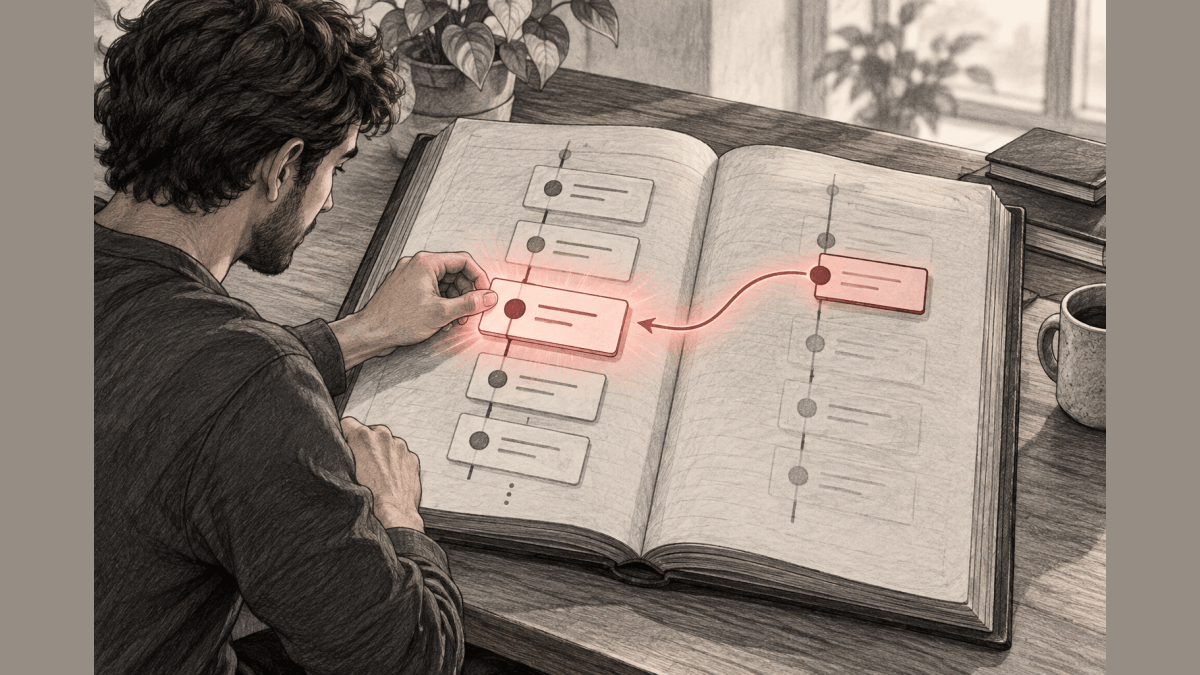
- git log
- git reflog
- Loglune flag history
git reflog is a Git command that shows the reference log, a local record of every position HEAD and your branches pointed to, including positions that no branch points to anymore. You use it to find a commit that seems lost after git reset --hard, a rebase, git commit --amend, or a deleted branch, and then you go back to it with git reset, git branch, or git cherry-pick. Each entry has a name such as HEAD@{2} or main@{1.day.ago} that other Git commands accept.
The reflog lives in your clone and is never pushed, and Git prunes entries after 90 days by default, or 30 days for entries no longer reachable from the branch.
This guide is for developers who lost commits in their own clone and need them back. It covers reading the output, HEAD@{n} and time-based names, the recovery steps, git reflog vs git log, and how long entries last. Edits that were never committed are out of scope, because the reflog does not record them.
The last section applies the same idea, looking up a past state by time, to feature flags with Loglune, using output recorded on October 6, 2026.
What git reflog does
Reflogs record when the tips of branches and other references were updated in the local repository. Every time a commit, checkout, reset, merge, rebase, pull, or amend moves HEAD or a branch, Git appends an entry with the old position, the new position, the time, and a short message.
Two examples of the names you can use: HEAD@{2} means where HEAD used to be two moves ago, and master@{one.week.ago} means where master pointed one week ago in this local repository. Git also keeps a separate reflog for the stash, and that reflogs are stored under .git/logs/, for example .git/logs/HEAD and .git/logs/refs/heads/.
Because the reflog records positions rather than branch ancestry, it still lists a commit after git reset, git rebase, or a branch deletion removed that commit from every branch. That is why the reflog is the first place to look when work seems gone.
How to read git reflog output
Run git reflog with no arguments. The default subcommand is show, and it shows HEAD when you name no ref, so git reflog and git reflog show HEAD are the same command.
Each line of the output has 3 parts, newest first. The short hash is the commit HEAD pointed to after that move. The selector, such as HEAD@{1}, is the position counted back from the newest move. The action and message, such as commit: Add search, reset: moving to HEAD~1, or checkout: moving from main to feature, say what moved HEAD and give the commit message or target.
HEAD@{0} is the current position, HEAD@{1} is the position before the last move, and so on. A line such as rebase (start) or reset: moving to marks the operation you may want to undo, and the line just below it shows where HEAD was before that operation.
To quit the reflog, press q. Git shows long output in a pager, and q closes the pager and returns you to the shell. To print without a pager, run git --no-pager reflog.
git reflog commands and options
git reflog show accepts every option of git log, because it is an alias for git log -g --abbrev-commit --pretty=oneline.
| Command | What it does |
|---|---|
git reflog |
The HEAD reflog |
git reflog show main |
The reflog of the branch main |
git reflog show --all |
The reflogs of all refs |
git reflog stash |
The stash reflog, one line per stash entry |
git reflog --date=iso |
Each selector shown as a timestamp instead of a number |
git reflog -n 20 |
The newest 20 entries |
git log -g -p |
The reflog walk with each commit’s patch |
git reflog list |
Every ref that has a reflog |
git reflog exists <ref> |
Exit status 0 if the ref has a reflog |
git reflog expire |
Prunes old entries; normally run for you by git gc |
git reflog delete <ref>@{n} |
Deletes one entry |
git reflog drop <ref> |
Removes the whole reflog of a ref |
End users typically do not run expire and delete, and both can lose data. The list, write, and drop subcommands are in the current reference page and in Git 2.56.0, the version we checked; older Git releases may not have them.
Reflog references: HEAD@{n} and time-based names
Every reflog entry has a name you can pass to other Git commands. Git defines 3 forms.
| Form | Example | Meaning |
|---|---|---|
<ref>@{<n>} |
main@{1}, HEAD@{5} |
The n-th prior value of that ref |
<ref>@{<date>} |
main@{yesterday}, HEAD@{5 minutes ago} |
The value of that ref at a prior point in time |
@{-<n>} |
@{-1} |
The n-th branch or commit checked out before the current one |
Time-based names answer “where was my branch at that time”. Time qualifiers include 1.minute.ago, 1.hour.ago, 1.day.ago, yesterday, 1.week.ago, and an absolute timestamp like 2011-05-17.09:00:00. They can be combined, as in 1.day.2.hours.ago. Use git diff to compare a branch with its state one day ago.
git diff main@{0} main@{1.day.ago}A date name has a limit: it looks up the state of your local ref at a given time, for example what was in your local master branch last week. To find commits created during a time window, use git log --since and --until instead.
How to use git reflog to go back
Every recovery follows the same 3 steps.
- Run
git reflogand find the entry just before the operation you want to undo. - Check that entry with
git show HEAD@{n}orgit log --oneline HEAD@{n}. - Move to it with
git reset, or keep your current state and create a branch at it.
Creating a branch first is the safer default, because it changes nothing on your current branch:
git branch rescue HEAD@{2}Undo a git reset –hard
After git reset --hard HEAD~1, the newest reflog entry is the reset itself, and HEAD@{1} is where the branch was before it.
git reset --hard HEAD@{1}Right after a reset, git reset --hard ORIG_HEAD does the same, as long as no other command changed ORIG_HEAD since. The git reset guide covers the modes of git reset in detail.
Undo a rebase
A rebase writes a rebase (start) entry and a rebase (finish) entry. The entry just below rebase (start) is your branch before the rebase. Reset to that entry to bring back commits that were squashed.
git reset --hard HEAD@{4}Replace 4 with the number of the entry below rebase (start) in your output.
Recover a deleted branch
When you delete a branch with -d or -D, its reflog is deleted too. The HEAD reflog still lists the commits you made while that branch was checked out. Find the last commit of the branch in git reflog and create the branch again at that commit.
git branch feature-search <hash>Undo git commit –amend
An amend replaces the last commit with a new one, and the reflog keeps the old one as HEAD@{1}. git reset --soft HEAD@{1} moves the branch back to the commit before the amend and keeps the amended changes staged.
Restore one dropped commit
To bring back one commit without moving your branch, cherry-pick it. This works after dropping the wrong commits in an interactive rebase: take the hash from the reflog line and run git cherry-pick <hash>.
git reflog vs git log
git log follows commit ancestry from a commit back to the first commit. git reflog follows the moves of one ref over time in your clone.
| git log | git reflog | |
|---|---|---|
| What it lists | Commits reachable from HEAD or the refs you name | Every position HEAD or a ref pointed to, newest first |
| Shows commits no branch points to | No | Yes, until the entries expire |
| Records checkouts, resets, rebases | No | Yes |
| Shared with other clones | Yes, commits are pushed and fetched | No, the reflog stays in your .git directory |
Use git log to read what the project history contains. Use git reflog to find where you were before something went wrong.
How long the reflog keeps entries, and its limits
The git-reflog page gives the defaults for git reflog expire: entries older than gc.reflogExpire are pruned, which “defaults to 90 days”, and entries older than gc.reflogExpireUnreachable and not reachable from the current tip are pruned after 30 days. git gc runs this pruning for you, and after the entries are gone, garbage collection can remove the commits too.
The reflog has 3 more limits. The reflog is local: a new clone does not copy the reflog of the repository it came from, so you cannot recover a teammate’s lost commit from your clone. Edits you never committed are not in the reflog, so a git reset --hard over uncommitted changes cannot be undone with git reflog. Changes you stashed are in the stash reflog, which git reflog stash lists. And the reflog shows where refs pointed, not who changed them in a shared repository. For a pushed commit that needs undoing, use git revert, which adds a commit instead of rewriting history.
A git reflog for feature flags, read by time
The time-based reflog names answer a question that also comes up in production: what was the state at a given time. During an incident, the question is often about configuration rather than code. “What did checkout-v2 serve at 9:00 for this user?” is the reflog question main@{2026-10-06 09:00} asked of feature flags. git reflog cannot answer it for flags that live outside the repository, and it keeps entries for 90 days in one clone.
Loglune stores flag changes as a history that every flag state is rebuilt from. Every flag edit is appended as a change event with a seq number, the actor, the time, and the state before and after. Every publish creates an immutable version with the next number in a sequence that publishing alone advances. The state at any time T is rebuilt from the events up to T, and the same input always gives the same version.
That gives you the 3 reflog moves for flags.
| Reflog move in Git | Loglune |
|---|---|
git reflog lists every move |
The audit log lists every change event, each with the version that first published it |
main@{<date>} names the state at a time |
Reproducing a time T serves the state live at T and evaluates it for the user you name |
git reset --hard HEAD@{n} goes back |
Rolling back to a published version N publishes a new version with the same contents, and the versions in between stay |
The history is an append-only hash chain, and Loglune rejects rewrites and deletions of it. Unlike git reflog expire, nothing prunes the chain except the retention period of your plan.
What the output looks like
We ran the shipped control route on a local test database on October 6, 2026, with an editorial example flag. The run created checkout-v2 with default off and published version 1. It switched checkout-v2 to on and published version 2, then rolled back to version 1, which published version 3.
| Version | publishedAt | Label | checkout-v2 default |
|---|---|---|---|
| 1 | 2026-10-06T09:00:02.000Z | checkout-v2 created, off | off |
| 2 | 2026-10-06T09:00:04.000Z | checkout-v2 on for everyone | on |
| 3 | 2026-10-06T09:00:05.000Z | rollback to v1 | off |
Next, the run reproduced 2 times for the context key user-42, half a second after each publish. At 2026-10-06T09:00:04.500Z, Loglune served version 2 and returned on.
{
  "version": 2,
  "count": 1,
  "evaluations": [
    {
      "flagKey": "checkout-v2",
      "variationId": "on",
      "value": true,
      "reason": {
        "kind": "default"
      },
      "missing": []
    }
  ]
}
At 2026-10-06T09:00:05.500Z, Loglune served version 3 and returned "variationId": "off" with "value": false. The empty missing list means the evaluation read no input that the request left out.
The audit for checkout-v2 listed each change event with the version that first published it, the way git reflog lists each move of HEAD.
| seq | at | default before | default after | publishedIn |
|---|---|---|---|---|
| 1 | 2026-10-06T09:00:01.000Z | null | off | 1 |
| 2 | 2026-10-06T09:00:03.000Z | off | on | 2 |
| 3 | 2026-10-06T09:00:05.000Z | on | off | 3 |
Going back to on worked like resetting to a reflog entry, without losing the entries in between. Rolling back to version 2 returned "version": 4 and "label": "rollback to v2", appended seq 4 setting the default from off to on, and the publish check against version 3 flagged the change.
{
  "kind": "defaultFlip",
  "flagKey": "checkout-v2",
  "before": "off",
  "after": "on",
  "severity": "high"
}
A diff between version 2 and version 4 returned "flags": [], "segments": [], and "configValues": [], so version 4 has the same contents as version 2. The audit after the rollback listed all 4 events, seq 4 with "publishedIn": 4, and ended with the hash chain check.
"chain": {
  "verified": true,
  "count": 4,
  "legacy": 0,
  "brokenAtSeq": null,
  "head": {
    "seq": 4,
    "hash": "2b58c0432041854e4c0babc3d1cddd1bd0077c5f441d5f38a82fb2b259427e46"
  },
  "anchor": "absent"
}
The anchor is absent because the daily anchor had not run on this local test database. A time T outside the retention period of your plan returns 403.
Choosing the recovery
Use git reflog to find where HEAD or a branch was, git reset --hard HEAD@{n} to move back, git branch <name> HEAD@{n} to keep a lost state without moving, and git cherry-pick to bring back one commit. Use a time-based name such as main@{1.day.ago} when you know when rather than how many moves ago. When the state you need is a set of feature flags rather than a commit, Loglune rebuilds the flags live at any time T from its change history and rolls back by publishing a new version, so no entry is lost.
A git reflog for feature flags, read by time
Loglune appends every flag edit to the history as a change event with the actor, the time, and the state before and after, and it rebuilds the flag state live at any time T from that history. Reproducing a time T serves that state and evaluates it for a user you name. Rolling back to a published version N publishes a new version with the same contents, so the versions in between stay. The Free plan costs $0 for 1 seat, keeps 7 days of history, and includes 5 reproductions.