git rebase: Update a Branch and Clean Up Commits
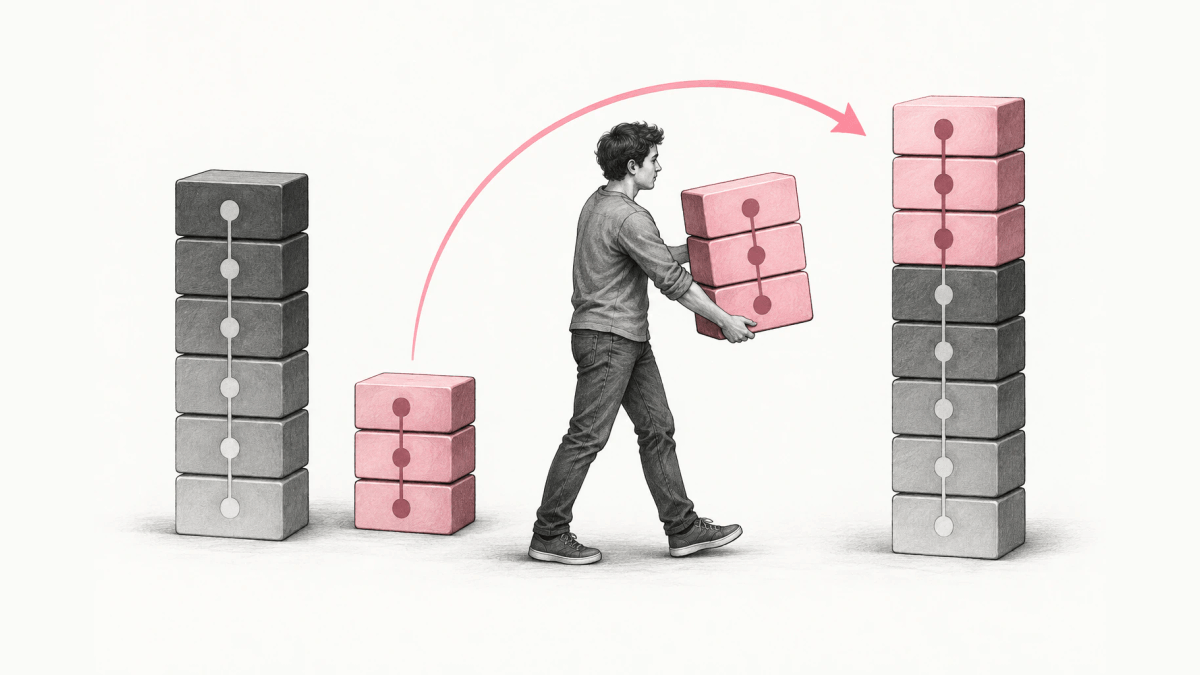
- git rebase
- git merge
- Loglune revert
git rebase is a Git command that takes the commits on your current branch and replays them, one by one, on top of another commit. The result is a linear history, as if you had started your branch from that newer commit. With git rebase -i, interactive rebase, you can also reorder, edit, squash, or drop commits while they are replayed. Rebase creates new commits to do this, so you use it on commits that only you have. Once other people have pulled a branch, use git merge or git revert instead.
This guide is for developers who keep a feature branch current with main or clean up its commits before a pull request. It covers the everyday rebase onto main, conflicts, interactive rebase, --onto, how to undo a rebase, and rebase vs merge. Choosing a branching model such as trunk-based development is not covered here.
The last section applies the “do not rewrite public history” rule to feature flags in Loglune, using output recorded on October 6, 2026.
What git rebase does
git rebase transplants a series of commits onto a different starting point. A typical example is a topic branch with commits A, B, and C that split off master at E, while master moved on to G.
          A---B---C topic
         /
    D---E---F---G master
Running git rebase master on topic gives this history.
                  A'--B'--C' topic
                 /
    D---E---F---G master
Git finds the commits on your branch that are not in the target, checks out the target, replays your commits one by one in order (similar to git cherry-pick for each), and then points your branch at the last replayed commit.
A’ is not A. Even though the branch looks the same, it is composed of entirely new commits. Each replayed commit has a new hash, and the old commits A, B, and C no longer belong to any branch. Everything else in this guide follows from that fact.
How to rebase a branch onto main
The common case is a feature branch that fell behind main. These steps bring your commits up to date with main and keep the history linear.
- Commit or stash your uncommitted work.
git statusshould show a clean working tree. - Fetch the latest
mainfrom the remote. - Switch to your feature branch and rebase it onto the remote
main.
git fetch origin
git switch feature/checkout-v2
git rebase origin/main
git rebase main feature/checkout-v2 does the same from any branch, because git rebase master topic is a shortcut for checking out topic and running git rebase master.
After the rebase, main can take your branch with a fast-forward merge, which needs no merge commit. Run git checkout master and git merge experiment. The final snapshot is the same as a merge would give; only the history is different.
git pull –rebase
git pull fetches and merges, which adds a merge commit every time you catch up. git pull --rebase fetches the same changes and replays your local commits on top of them instead. To make it the default, set the config below.
git pull --rebase origin main
git config --global pull.rebase true
Pushing a rebased branch
If you had already pushed the feature branch before rebasing, the remote still has the old commits, and a normal push is rejected. A rebase then requires a force push, which overwrites the remote branch. Use --force-with-lease. That option alone updates the remote branch only if it still equals your remote-tracking branch, and fails otherwise, so a commit someone else pushed in the meantime is not lost.
git push --force-with-leaseForce-push only a branch that you alone work on. The section on public history explains why.
Resolve conflicts during a rebase
A rebase can stop at any replayed commit that conflicts with the new base. Git will stop at the first problematic commit and leave conflict markers. You then have 3 ways forward.
| Command | What it does |
|---|---|
git rebase --continue |
Continues after you resolve the conflict and git add the fixed files |
git rebase --skip |
Skips the commit that conflicted, so it is left out of the result |
git rebase --abort |
Stops the rebase and returns the branch to where it was before |
git status                  # lists the conflicted files
git add src/checkout.ts     # after fixing the markers
git rebase --continue
A fourth option, git rebase --quit, stops the rebase but leaves HEAD, the index, and the working tree as they are. It is a cleanup tool rather than a first choice.
Rebase replays commits one at a time, so you can end up resolving the same conflict repeatedly across several commits. Conflicts get more frequent on a long-lived branch that strayed from main, so rebase against main often.
Git interactive rebase: edit, squash, reorder, and drop commits
Interactive rebase lets you change each commit as it is replayed. A plain git rebase replays every commit as it is, and git rebase -i first opens a list where you choose what happens to each one. Start it with the last commit you want to keep as it is, or with a count of commits back from HEAD.
git rebase -i HEAD~3
git rebase -i main
Git opens an editor with a todo list, oldest commit first. You change the word in front of each commit, reorder the lines, then save and close the editor.
pick 2231360 Add checkout v2 behind a flag
pick ee2adc2 Fix typo in checkout copy
pick 4d5e6f7 WIP debug logging| Command | Short | What it does |
|---|---|---|
pick |
p |
Use the commit as it is |
reword |
r |
Use the commit, but edit its message |
edit |
e |
Use the commit, then stop so you can amend it |
squash |
s |
Fold the commit into the previous one and combine both messages |
fixup |
f |
Like squash, but discard this commit’s message |
exec |
x |
Run a shell command at that point |
drop |
d |
Remove the commit (deleting the line does the same) |
break |
Stop at that point, without applying a commit first |
For the list above, this todo list folds the typo fix into the first commit and removes the debug commit.
pick 2231360 Add checkout v2 behind a flag
fixup ee2adc2 Fix typo in checkout copy
drop 4d5e6f7 WIP debug logging
Git reads the commit names in the list, not the one-line descriptions, so do not edit the hashes. To reorder commits, move the lines. For example, git rebase -i HEAD~5 and moving the first line to the end makes HEAD~4 the new HEAD.
Fixup commits and –autosquash
If you know at commit time which earlier commit a fix belongs to, mark it with git commit --fixup. --autosquash then moves each fixup! or squash! commit right after the commit it names and sets its action for you. Setting rebase.autoSquash to true makes this the default.
git commit --fixup 2231360
git rebase -i --autosquash main
Test every commit with –exec
Reordering and squashing can leave commits in between that no longer build. Use exec lines, or the --exec option, which adds exec <cmd> after each commit. The rebase stops when the command fails, so you can fix that commit and run git rebase --continue.
git rebase -i --exec "npm test" mainA clean history pays off later. On a linear history, you can use git log and then git bisect to find the commit that introduced a regression.
Split a commit
Splitting a commit takes 4 steps. Mark it edit. When the rebase stops there, run git reset HEAD^, which keeps the changes in your files, then stage and commit them in parts. Finish with git rebase --continue. The git reset guide covers the modes of git reset.
git rebase –onto
--onto moves a range of commits to a base other than the branch you compare against. A typical use is a topic branch that started from another topic branch. If featureB was branched off featureA but does not need any of its changes, this moves the featureB commits onto main.
git rebase --onto main featureA featureBThe form is git rebase --onto <newbase> <oldbase> <branch>: take the commits on <branch> that are not on <oldbase>, and replay them on <newbase>. --onto also removes commits. On a branch E---F---G---H---I---J topicA, git rebase --onto topicA~5 topicA~3 topicA removes F and G and replays H, I, and J on E.
How to undo a git rebase
During a rebase, git rebase --abort returns the branch to where it was before the rebase started.
After a finished rebase, the old commits still exist and you can point the branch back at them. When the rebase starts, ORIG_HEAD is set to the tip of the branch. ORIG_HEAD can change if you run other commands such as git reset during the rebase, and the old tip is also in the reflog of the branch as @{1}.
git reset --hard ORIG_HEADgit reflog show feature/checkout-v2
git reset --hard feature/checkout-v2@{1}git reset --hard discards uncommitted changes, so check git status first. The same point applies to squash and drop: the commits can look permanently gone, but with git reflog these commits can be restored and the entire rebase can be undone. The reflog is local to your clone, so this works for your own rebases. If you already force-pushed the rebased branch, find the pre-rebase commit in the reflog and reset back to it, which you then have to force-push again.
git rebase vs git merge
Both commands bring the changes of one branch into another. The end snapshot is the same and only the history differs.
| git rebase | git merge | |
|---|---|---|
| What it creates | New copies of your commits on the new base | One merge commit that joins both branches |
| History shape | Linear | Shows where the branches split and joined |
| Original commits | Leave the branch; new hashes | Stay as they are |
| Conflicts | Resolved commit by commit | Resolved once, in the merge commit |
| After pushing | Needs a force push | A normal push works |
| Safe on a shared branch | No | Yes |
Pro Git’s section “Rebase vs. Merge” frames the choice as 2 views of history. In one, the commit history is “a record of what actually happened” and should not be tampered with. In the other, it is the story of how the project was made, which you clean up before publishing. Pro Git’s answer combines them: rebase local changes before you push to clean up your work, and “never rebase anything that you’ve pushed somewhere.”
In practice, the split is this: rebase a personal feature branch to keep it current with main or to clean it up before a pull request, and merge on anything shared.
Don’t rebase public history
Do not rebase commits that other people have already pulled. You should never rebase commits once they’ve been pushed to a public repository, because the rebase replaces the old commits with new ones and part of the history appears to vanish. The rule covers commits that exist outside your repository and that people may have based work on: do not rebase them.
Here is what happens when someone breaks the rule. A teammate rebases a branch you already merged into your work, and force-pushes it. When you pull, you merge the same work in again, and git log then shows 2 commits with the same author, date, and message. If you push that history back, the commits the teammate removed return to the server.
Recovering from an upstream rebase
For the people downstream of a rewritten branch, the real fix is to avoid rebasing the upstream in the first place. When the rewritten commits have the same changes as before, rebasing your branch onto the new upstream skips the duplicates.
git rebase subsystemWhen the upstream rebase changed commits, for example by squashing, editing, or dropping them, the page calls it the hard case: you tell git rebase where the old upstream ended. After git fetch, the old tip of subsystem is subsystem@{1} in the reflog, and the page gives this command.
git rebase --onto subsystem subsystem@{1}The same recovery works with the reflog of the remote branch.
So, is git rebase risky? Atlassian’s answer is that rebase itself is “not seriously dangerous.” The risk comes from interactive history rewriting combined with force-pushing to a branch other people share.
A history you can’t rebase: feature flag changes
Pro Git’s first view of history, “a record of what actually happened,” is the right one for production configuration such as feature flags. Your customers were already served each published state. During an incident, the question is which flag state was live and who changed it, and a cleaned-up story cannot answer that. Production flags are public history in the sense of the rule above, with your users downstream instead of your teammates.
Loglune, a feature-flag platform, keeps flag history that way. Every flag edit is appended to the history as a change event with a seq number, the actor, the time, and the state before and after. The history is an append-only hash chain, and Loglune rejects rewrites and deletions of it. Publishing creates an immutable version with the next number in a sequence that only publishing advances.
So there is no interactive rebase to drop an edit from the middle. Loglune does what git revert does instead. Reverting a change event by its seq appends a new edit to the draft that puts that flag back to its state just before the event. If a later edit changed the same flag, Loglune returns 409 superseded with the later seq numbers and appends nothing, because putting the earlier state back would also throw the later edit away. That is the case where a Git rebase would stop with a conflict and ask you to rewrite the later commit.
What the output looks like
We ran the shipped control route on a local test database on October 6, 2026, with editorial example flags. The run created checkout-v2 (seq 1) and promo-banner (seq 2) with default off and published version 1. Then it made 3 draft edits: checkout-v2 to on (seq 3), promo-banner to on (seq 4), and checkout-v2 back to off (seq 5).
Reverting seq 3 returned status 409, because seq 5 had changed checkout-v2 after it.
{
  "error": "conflict",
  "reason": "superseded",
  "laterSeqs": [
    5
  ],
  "hint": "Later changes (laterSeqs) edited the same entity; reverting this one would throw them away. Revert those first, newest first, or define the state you want."
}
Reverting seq 4 returned status 200 with a new event, seq 6, that sets promo-banner from on back to off. Publishing then created version 2, and a diff between version 1 and version 2 returned "flags": [], "segments": [], and "configValues": []. The flags ended where they started, but the edits did not disappear from the history.
The audit log for promo-banner listed every event, each with the version that first published it.
| seq | at | default before | default after | publishedIn | What it was |
|---|---|---|---|---|---|
| 2 | 2026-10-06T09:00:02.000Z | null | off | 1 | Created |
| 4 | 2026-10-06T09:00:05.000Z | off | on | 2 | Switched on in the draft |
| 6 | 2026-10-06T09:00:08.000Z | on | off | 2 | Revert of seq 4 |
The same response ended with the verification result of the hash chain over all 6 events.
"chain": {
  "verified": true,
  "count": 6,
  "legacy": 0,
  "brokenAtSeq": null,
  "head": {
    "seq": 6,
    "hash": "5d46c601b13fee78e92a6498f6e21a6b839f39c6113b6562a30de0da41635499"
  },
  "anchor": "absent"
}
In Git terms, the drop in an interactive rebase removes a commit and gives the later commits new hashes. Loglune’s revert keeps seq 4 where it was and adds seq 6 after it, the way git revert keeps the original commit.
Choosing how to clean up
Use git rebase origin/main or git pull --rebase to keep your own branch current, git rebase -i to squash and drop commits before a pull request, and git rebase --abort, ORIG_HEAD, or the reflog to back out. Once a branch is shared, merge instead of rebasing, and undo a pushed commit with git revert. When the history is feature flag state that customers were already served, Loglune appends a revert for the one edit you want gone, refuses with 409 superseded when a later edit depends on it, and keeps every edit in a hash chain it does not let anyone rewrite.
Drop one flag change the way git rebase drops a commit, with the history kept
Loglune undoes one feature flag edit by its seq number by appending an edit that puts the flag back to the state before it, so the original edit stays in the history. If a later edit changed the same flag, Loglune refuses with 409 superseded and names the later seq instead of throwing that edit away. The history is an append-only hash chain, and Loglune rejects rewrites and deletions of it. The Free plan costs $0 for 1 seat and keeps 7 days of history.