git revert: Undo a Commit and Keep the History
- git revert
- git reset
- Loglune revert
git revert is a Git command that creates a new commit reversing the changes of one or more earlier commits, and it leaves the earlier commits in the history. You use it to undo a change on a branch that other people already pulled, because it adds a commit instead of rewriting the commits they have. When a later commit changed the same lines, git revert stops with a conflict that you resolve before the revert commit is made.
This guide is for developers who need to undo a commit that is already pushed or merged. It covers reverting one commit, the last commit, several commits, and a merge commit, resolving conflicts, the main options, and git revert vs git reset. Edits you have not committed are covered only as a pointer to git restore.
The same idea applies outside Git. A production change such as a feature flag edit can also be undone with a new change that keeps the original in the history. The last section of this guide shows that with Loglune, using output recorded on October 6, 2026.
What git revert does
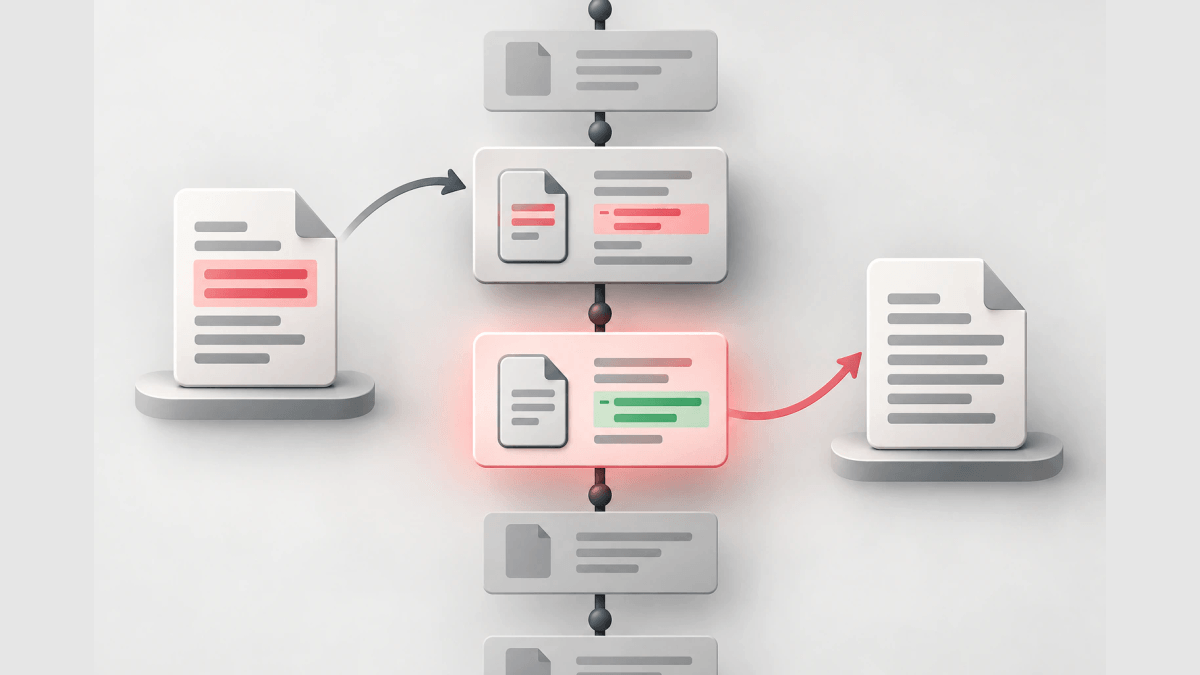
git revert records some new commits to reverse the effect of some earlier commits. You name a commit, Git computes the inverse of the changes that commit introduced, applies that inverse to your current branch, and records it as a new commit.
The original commit is not removed. Anyone who reads git log afterwards sees the original commit and the revert commit, and the default revert message names the commit it reverses. This is why git revert is the usual way to undo a commit on a shared branch such as main.
git revert undoes the changes of a commit, not every commit after it. If you revert a commit from last week, the commits made since then stay in place, and only the lines that commit changed are reversed.
Before you run git revert
git revert needs a clean working tree. The command requires no modifications from the HEAD commit, so commit or stash your local edits first.
You also need the hash of the commit to undo. git log --oneline prints one commit per line with its short hash and subject.
git log --onelineIf what you want to undo is a local edit that you have not committed, git revert is the wrong command. Use git restore for discarding uncommitted changes and for extracting files as they were in another commit. git restore path/to/file discards the working tree changes to that file, and git restore --staged path/to/file unstages it.
How to revert a commit in 4 steps
1. Find the commit with git log
Run git log --oneline and copy the short hash of the commit that introduced the change you want to undo. For a range of history, git log --oneline -- path/to/file lists only the commits that touched that file.
2. Run git revert on the commit
Pass the hash to git revert. Git applies the inverse of that commit’s changes to your working tree.
git revert a1b2c3d3. Edit or keep the commit message
From a terminal, git revert opens your editor with a message that starts with Revert " and the original subject. Explain why you reverted, so add a line with the reason. To keep the default message without opening the editor, add --no-edit.
git revert --no-edit a1b2c3d4. Push the revert commit
The revert is an ordinary new commit, so a normal push shares it. No force push is needed, because the commits other people already have are unchanged.
git pushRevert the last commit
HEAD names the latest commit on your branch, so reverting it undoes the last commit.
git revert HEADThe same pattern works with an older commit: git revert HEAD~3 reverts the changes made by the fourth last commit in HEAD and creates a new commit with the reverted changes. Use HEAD~1 for the commit before the last one, and so on.
Revert multiple commits
git revert accepts several commits or a range, and it makes one revert commit for each commit by default. To get a single commit that reverses all of them, add -n (--no-commit). This option applies the changes to your working tree and index without committing, which is useful when reverting more than one commit’s effect in a row.
git revert -n master~5..master~2
git commit -m "Revert the checkout rewrite"
The range A..B means the commits reachable from B and not from A. To roll back everything after a known good commit, revert the range from that commit to HEAD, then commit once.
git revert --no-commit 4d5e6f7..HEAD
git commit -m "Revert to 4d5e6f7"
This produces the same files as the old commit while keeping every commit in between in the history.
Revert a merge commit with -m
A merge commit has two parents, so Git cannot tell which side to keep unless you say so. The -m option (mainline) takes the parent number, starting from 1. On a branch where you merged a feature into main, parent 1 is usually main, so -m 1 removes the changes the feature branch brought in.
git revert -m 1 9f8e7d6Reverting a merge declares that you will never want the tree changes brought in by the merge. If you later fix the feature branch and merge it again, Git treats the earlier commits on that branch as already merged and does not bring them back. The Git howto revert-a-faulty-merge by Linus Torvalds and Junio C Hamano covers the remedy: revert the revert commit first, then merge the fixed branch.
Resolve conflicts during a git revert
A conflict happens when a later commit changed the same lines that the reverted commit changed. Git stops, marks the conflicting files, and waits. Fix the files, stage them, and continue.
git status
git add path/to/file
git revert --continue
There are 4 subcommands for an operation in progress.
| Subcommand | What it does |
|---|---|
--continue |
Continues after you resolved the conflicts and staged the files |
--skip |
Skips the current commit and continues with the rest of the sequence |
--abort |
Cancels the operation and returns to the state before the revert sequence |
--quit |
Forgets the operation in progress, leaving the changes already made |
The conflict is a signal that the code moved after the commit you are undoing. Read the later commit before you resolve, because keeping the wrong side can undo work that was meant to stay.
Revert a single file
git revert works on whole commits. To undo one file’s changes from a commit, start the revert without committing, put the other files back, and commit only the file you want.
git revert -n a1b2c3d
git restore --staged --worktree -- path/to/other-file
git commit -m "Revert a1b2c3d for path/to/file"
To set one file back to how it was before a commit, git restore reads the file from that commit’s parent.
git restore --source=a1b2c3d~1 -- path/to/file
git commit -am "Restore path/to/file from before a1b2c3d"
Revert a pull request on GitHub
GitHub can revert a merged pull request from the website. The GitHub Docs page Reverting a pull request says this “creates a new pull request that reverts the original merge commit”. You need write permission in the repository.
- Under your repository name, click Pull requests, then choose the merged pull request.
- Click Revert near the bottom of the pull request.
- Merge the new pull request that GitHub opens.
The result is the same as running git revert on the merge commit and opening a pull request with the revert commit.
Undo a git revert
A revert commit is a commit, so you undo it by reverting it.
git revert <revert-commit-hash>The subject of a revert of a revert starts with Reapply ". This is also the step the revert-a-faulty-merge howto uses before merging a fixed branch again.
git revert options
The synopsis is git revert [--[no-]edit] [-n] [-m <parent-number>] [-s] [-S[<keyid>]] <commit>….
| Option | What it does |
|---|---|
-e, --edit |
Opens the editor for the commit message; the default from a terminal |
--no-edit |
Uses the default message without opening the editor |
-n, --no-commit |
Applies the reverse changes to the working tree and index without committing |
-m <parent-number> |
Selects the mainline parent when reverting a merge commit |
-s, --signoff |
Adds a Signed-off-by trailer to the message |
-S[<keyid>] |
GPG-signs the revert commit |
--strategy, -X |
Chooses the merge strategy and its options for applying the reverse changes |
--reference |
Refers to the reverted commit in the message body in the --pretty=reference format instead of the full object name |
git revert vs git reset
Both commands undo changes, and they differ in what happens to history. git revert adds a commit and keeps the old one. git reset moves the branch pointer to an earlier commit, so the later commits are no longer on the branch.
| git revert | git reset | |
|---|---|---|
| History | Adds a new commit; the original stays | Moves the branch back; later commits leave the branch |
| Safe on a shared branch | Yes, a normal push shares it | No, others still have the commits you removed, and pushing needs a force push |
| Target | One commit, a list, or a range | A point in history |
| Working tree | Must be clean | Depends on --soft, --mixed, or --hard |
| Typical use | Undo a change that is already pushed | Rework local commits that nobody else has |
Use git revert when the commit is already pushed or merged. Use git reset only on commits that exist in your local branch alone. For edits you have not committed, use git restore. The git reset guide covers the --soft, --mixed, and --hard modes.
Undo a feature flag change with a new edit, history kept
git revert makes a new commit instead of deleting the old one. Feature flag changes need the same property. When a flag edit breaks checkout for some customers, you want to undo commits with a new commit, in flag terms, and still see later who changed what and when.
Loglune applies the git revert model to flag changes. Every flag edit is appended as a change event with a seq number. The revert operation takes a seq and appends one edit to the draft that restores the flag to its state just before that seq. It does not publish; you publish the draft as a separate step. If the seq does not exist, Loglune returns 404, and if nothing would change, it returns 409 no-change. Neither of those is written to the history. Revert is a write operation, so each call needs an explicit confirmation argument.
Where git revert stops with a conflict, Loglune refuses. If a later edit changed the same flag, reverting the earlier edit would throw the later one away, so Loglune returns 409 superseded with the later seqs. That matches how reverting commits without altering history works: you undo the newest change first.
To roll back a whole published version instead of one change, Loglune has a separate rollback operation. It appends the edits that bring the draft to version N and publishes a new version with the same contents, much like reverting a range up to HEAD.
What the output looks like
We ran the shipped control route on a local test database on October 6, 2026, with editorial example flags. The run created checkout-v2 and promo-banner with default off (seq 1 and 2) and published version 1. It switched both to on (seq 3 and 4) and published version 2. It then added a rule to checkout-v2 (seq 5) and published version 3.
Reverting seq 3 returned status 409, because seq 5 changed checkout-v2 later.
{
  "error": "conflict",
  "reason": "superseded",
  "laterSeqs": [
    5
  ],
  "hint": "Later changes (laterSeqs) edited the same entity; reverting this one would throw them away. Revert those first, newest first, or define the state you want."
}
Reverting seq 4 returned status 200 with a new event: "seq": 6, "op": "update", "targetKey": "promo-banner", defaultVariationId "on" before and "off" after. Reverting seq 4 a second time returned 409 superseded with "laterSeqs": [6], because the revert is itself a later change to the same flag. Like a revert commit in Git, seq 6 can be reverted to reapply the change.
Publishing the draft returned "version": 4 with a publish check against version 3 that flagged the change: "kind": "defaultFlip", "flagKey": "promo-banner", "before": "on", "after": "off", "severity": "high".
The audit log for promo-banner listed 3 events, each with the version that first published it.
| seq | at | op | default before | default after | publishedIn |
|---|---|---|---|---|---|
| 2 | 2026-10-06T09:00:02.000Z | create | null | off | 1 |
| 4 | 2026-10-06T09:00:05.000Z | update | off | on | 2 |
| 6 | 2026-10-06T09:00:10.000Z | update | on | off | 4 |
The same audit response ended with the verification result of the history’s hash chain.
"chain": {
  "verified": true,
  "count": 6,
  "legacy": 0,
  "brokenAtSeq": null,
  "head": {
    "seq": 6,
    "hash": "a8e19617eb059ac2bf88c307f5e6d037f9ce907b5802e64cdaae6146ffeb4ba7"
  },
  "anchor": "absent"
}
The original edit at seq 4 is still in the history next to its undo at seq 6. Loglune keeps the history as an append-only hash chain and rejects rewrites and deletions, which is the flag equivalent of revert commits without altering history.
Choosing how to undo a change
Use git revert when the change is already shared, since it undoes the change with a new commit and keeps the history readable. Add -n to combine several reverts into one commit, -m 1 to revert a merge, and --continue after resolving a conflict. Use git reset only for commits that never left your machine. When the change you need to undo is a feature flag edit rather than a commit, Loglune reverts that one change by seq with a new edit, refuses when a later edit would be lost, and keeps both edits in the audit.
Undo a flag change the git revert way, with the history kept
Loglune records every flag edit as a change event with a seq number. Revert a seq, and Loglune appends one edit that restores the flag to its state just before that change, so the original edit and the undo both stay in the history. When a later edit changed the same flag, Loglune returns 409 superseded with the later seqs instead of discarding them. The Free plan costs $0 for 1 seat.