git diff: Compare Commits, Branches, and Files
- git diff
- git diff --staged
- Loglune diff
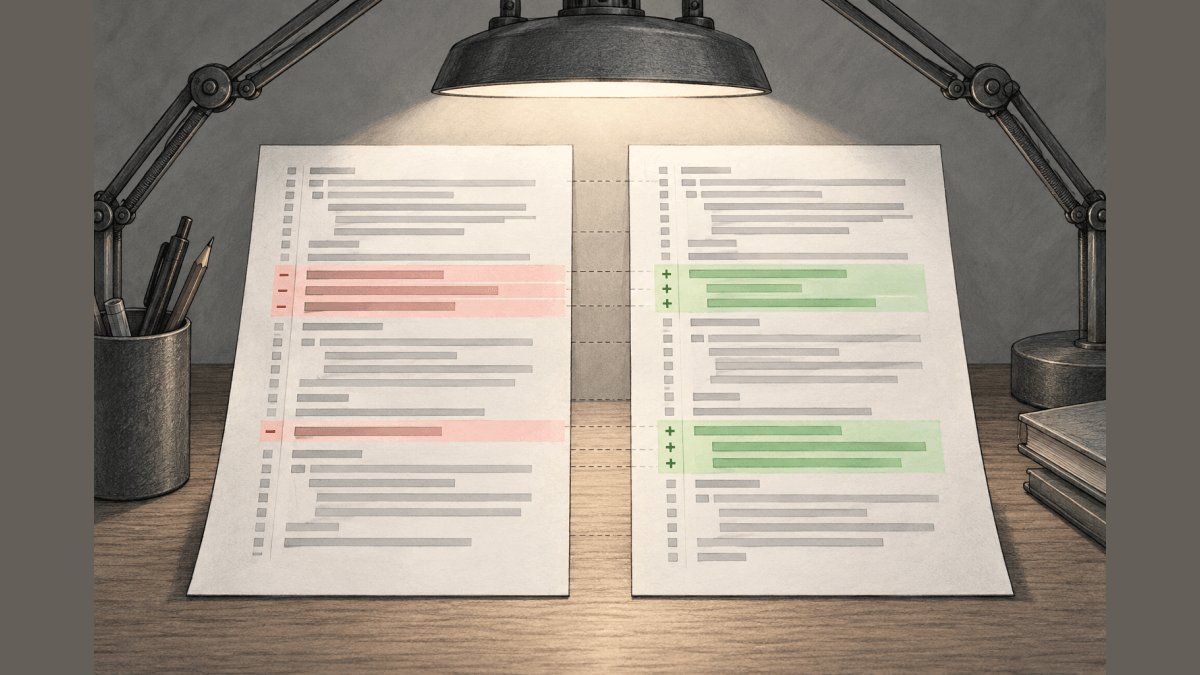
git diff is the Git command that shows the line-by-line changes between two states of a repository. With no arguments, git diff compares your working tree with the staging area (the index) and prints the edits you have not staged yet. Other forms compare the staging area with the last commit (git diff --staged), the working tree with a commit (git diff HEAD), two commits or branches (git diff A B), or any two files on disk (git diff --no-index). The output is a unified diff: lines starting with - were removed and lines starting with + were added.
This guide is for developers who want to check their work before a commit or see what a commit, a branch, or a file changed. It explains how to read the output, then gives a copyable command for each comparison, the summary and word-level views, and the fix for ^M carriage returns. Binary files are out of scope; the --text option covers them.
The same question, what changed between two versions, comes up for production changes that never went through a commit, such as a feature flag edit. The last section of this guide diffs two versions of a set of feature flags, with output Loglune returned on October 6, 2026.
What git diff compares
git diff always compares two endpoints, and the arguments you pass decide which two. These are the forms.
| Command | Left side | Right side | Typical use |
|---|---|---|---|
git diff |
Staging area | Working tree | Edits you have not run git add on |
git diff --staged (same as --cached) |
HEAD |
Staging area | What git commit will record |
git diff HEAD |
HEAD |
Working tree | Every change since the last commit, staged or not |
git diff <commit> |
That commit | Working tree | Your work against another branch tip or an older commit |
git diff A B or git diff A..B |
Commit A | Commit B | Changes between two commits or branch tips |
git diff A...B |
Common ancestor of A and B | Commit B | Changes made on branch B since it split from A |
git diff --no-index <path> <path> |
First path | Second path | Two files or folders on disk, inside or outside a repository |
The .. and ... forms look like the ranges in git log, but git diff does not treat them as ranges. Diff compares two endpoints, so git diff A..B is the same as git diff A B.
How to read git diff output
git diff prints a unified diff. We ran git diff --no-index with Git 2.56.0 on October 6, 2026, on two copies of an example checkout.ts, where the second copy adds a discount parameter. This is the output, unchanged:
diff --git a/a/checkout.ts b/b/checkout.ts
index 45ef465..f9e3564 100644
--- a/a/checkout.ts
+++ b/b/checkout.ts
@@ -1,7 +1,7 @@
-export function checkoutTotal(items: number[]): number {
+export function checkoutTotal(items: number[], discount = 0): number {
   let total = 0;
   for (const price of items) {
     total += price;
   }
-  return total;
+  return total - discount;
 }
Each part of the git diff output has one job. diff --git a/... b/... names the two inputs. a/ is the old side and b/ is the new side. In this run the folders were also named a and b, so the paths read a/a/checkout.ts and b/b/checkout.ts. index 45ef465..f9e3564 100644 gives the short object IDs of the old and new content and the file mode (100644 is a regular, non-executable file). --- a/... and +++ b/... mark which side uses - and which uses +.
@@ -1,7 +1,7 @@ is the hunk header. -1,7 means the hunk starts at line 1 of the old file and covers 7 lines, and +1,7 gives the same for the new file. Lines starting with - exist only in the old file, lines starting with + exist only in the new file, and lines starting with a space are unchanged context. git diff shows 3 lines of context around each change unless you set -U<n>.
A changed line appears as a removed line followed by an added line. The diff above changed 2 lines, the function signature and the return statement, and kept the 5 lines between them as context.
How to view changes before a commit
To see changes before a commit, run git diff in 2 steps: git diff for what you have not staged, then git diff --staged for what the commit will contain.
git diff            # edits not staged yet
git add src/checkout.ts
git diff --staged   # what git commit will record
git diff alone shows nothing after you stage every change, which surprises many people. The changes did not disappear; they moved to the staging area, and git diff --staged shows them. git diff HEAD shows staged and unstaged changes together, which is what git commit -a would record. To check one file before committing, add its path: git diff HEAD -- src/checkout.ts.
How to diff 2 commits in git
To diff 2 commits, pass both commit hashes or refs, older first: git diff <old> <new>. Swapping the order flips every + and -.
git diff 3f2a9c1 8b7e4d0       # two commit hashes
git diff HEAD~1 HEAD           # the last commit against the one before it
git diff v1.4.0 v1.5.0 --stat  # two tags, summary only
git diff HEAD~1 HEAD shows the changes made by the latest commit. git show HEAD prints the same patch together with the commit’s message and author. Run git log --oneline first to find the hashes; git bisect covers narrowing a long history down to the one commit that introduced a bug.
How to diff between branches
Two dots and three dots answer different questions when you compare branches.
git diff main feature      # tip of main against tip of feature
git diff main...feature    # what feature changed since it branched from main
git diff main feature includes changes that landed on main after feature branched off, shown as if feature removed them. git diff main...feature compares feature with the common ancestor of the two branches, so it shows only the work done on feature.
How to do git diff for a file
To diff one file, put its path after --. The -- separates paths from commits so Git does not read a file name as a branch name.
git diff -- src/checkout.ts                # unstaged changes in one file
git diff --staged -- src/checkout.ts       # staged changes in one file
git diff main feature -- src/checkout.ts   # one file across two branches
git diff HEAD~3 -- src/                    # one folder against 3 commits ago
To diff two files that are not two versions of the same tracked path, use --no-index: git diff --no-index old.json new.json. This works outside a repository too, and it is how the example in this guide was produced. With --no-index, git diff exits with status 1 when the files differ and 0 when they are the same, so scripts can test the result.
Summarize a diff: –stat, –name-only, and –name-status
For a large change, start with a summary and open the full patch only for the files that matter. --stat prints one line per file with a count of changed lines. On the same two example files, Git 2.56.0 printed:
 {a => b}/checkout.ts | 4 ++--
 1 file changed, 2 insertions(+), 2 deletions(-)
The {a => b} appears because the two compared paths differ only in their folder name. In a repository you see the plain path. 4 ++-- means 4 changed lines, 2 added and 2 removed.
--name-only prints the changed file names only, and --name-status adds a status letter: A added, M modified, D deleted, R renamed. --diff-filter=M keeps only files with the given status letters, and lowercase letters exclude, as in --diff-filter=d. git diff --name-only main...feature is a quick way to list every file a branch touched.
Word-level and side-by-side diffs
Line-based output hides small edits inside long lines. --word-diff marks the changed words instead. On the same files, Git 2.56.0 printed:
@@ -1,7 +1,7 @@
export function checkoutTotal(items: [-number[]):-]{+number[], discount = 0):+} number {
  let total = 0;
  for (const price of items) {
    total += price;
  }
  return [-total;-]{+total - discount;+}
}
[-...-] is removed text and {+...+} is added text. --color-words shows the same thing with red and green instead of brackets, which reads better in a terminal and worse in a log file.
git diff has no side-by-side mode of its own. For a two-column view, git difftool opens the same comparison in an external diff tool (configured with diff.tool), and GitHub, GitLab, and most IDEs offer a split view of the same diff.
Why am I seeing ^M in git diff?
^M in git diff is a carriage return. It appears when a file has Windows line endings (CRLF) on lines where the other side has Unix line endings (LF), so Git reports the lines as changed even though the visible text is the same. To compare without it, run git diff --ignore-cr-at-eol, which ignores a carriage return at the end of a line. -w (--ignore-all-space) goes further and ignores all whitespace. To stop the difference from coming back, normalize line endings in the repository with a .gitattributes rule such as * text=auto.
git diff options
Besides the options above, --check warns about conflict markers and whitespace errors and exits non-zero if any, --exit-code and --quiet exit 1 when there are differences and 0 when there are none, and -R swaps the two sides.
git diff vs git show
git diff compares any two endpoints you name. git show prints one object, usually a commit, with its message and the patch against its parent. A Reddit thread in the git diff results puts the difference the same way: git diff is for diffing any two commits or the working tree and index, and git show is for one commit. git show <hash> and git diff <hash>~1 <hash> print the same patch for an ordinary, non-merge commit.
Diffing two versions of your feature flags
When a bug starts and git diff between the last 2 releases shows nothing that explains it, the change often sits outside the repository, in a feature flag. The questions are the ones git diff answers for code: what changed since the last version, and what will change if I ship this. git diff covers changes since the last commit and comparing two different commits; a flag tool needs the same two comparisons.
Loglune turns each publish of your feature flags into an immutable, numbered version. Its diff compares 2 published versions item by item, flags, segments, and config values, and returns the rollout findings between the same 2 versions. Its publish preview builds the next version from your draft without writing anything and returns the diff and the findings against the current version, which plays the role of git diff --staged before a commit.
| Question | git diff | Loglune |
|---|---|---|
| What changed between 2 releases | git diff v1.4.0 v1.5.0 |
diff with before: 1, after: 2 |
| Only one item | git diff A B -- <path> |
diff with flagKey |
| What the next release will contain | git diff --staged |
Publish preview of the draft against the current version |
| Changes that need attention | --check warnings |
Findings such as defaultFlip with a severity |
Two differences matter. A git diff is line-based, and the Loglune diff is item-based: each changed flag comes back with its complete definition before and after, so you read a rule change as a rule, not as moved JSON lines. And git diff tells you what changed but not who receives it; the publish preview can also evaluate the draft and the current version side by side for up to 50 example contexts.
What the output looks like
We ran the shipped control route on a local test database on October 6, 2026, with editorial example flags. We created checkout-v2 and promo-banner with default off and published version 1. We then added a rule that serves on to the beta plan on checkout-v2, switched promo-banner to default on, and published version 2.
The diff from version 1 to version 2 returned status 200 with both flags marked "change": "changed" and empty segments and configValues. This is the promo-banner entry, with the variations omitted:
{
  "key": "promo-banner",
  "change": "changed",
  "before": { "key": "promo-banner", "kind": "bool", "defaultVariationId": "off", "rules": [] },
  "after": { "key": "promo-banner", "kind": "bool", "defaultVariationId": "on", "rules": [] }
}
The same response carried one finding, for the flag that now serves on to everyone:
"findings": [
  {
    "kind": "defaultFlip",
    "flagKey": "promo-banner",
    "before": "off",
    "after": "on",
    "severity": "high"
  }
]
Passing flagKey: "checkout-v2" narrowed the diff to that flag. It returned only the checkout-v2 entry, with rules going from [] to the beta-users rule, and "findings": [], because adding a targeted rule did not flip the default.
Next we switched checkout-v2 to default on with no rules and left the edit in the draft. The publish preview returned "version": 3 and "against": 2 without publishing, a diff that listed only checkout-v2 (default off with the beta-users rule before, default on with no rules after), and a defaultFlip finding for checkout-v2 with "severity": "high". Evaluating 2 example contexts in the same preview showed who the edit reaches:
| Context | plan | Draft | Current version 2 |
|---|---|---|---|
| user-free-1 | free | on (default) |
off (default) |
| user-beta-1 | beta | on (default) |
on (rule 0 matched) |
Read like git diff --staged, the preview answers the release question before anything ships: the draft turns checkout-v2 on for the free plan, which was off in version 2, and the beta plan sees no change. If a customer reports a problem after a publish, git bisect covers finding the change that flipped one customer’s result, and git revert covers undoing one change with a new edit.
Reviewing changes before you ship them
Run git diff and git diff --staged before every commit, git diff A...B --stat before reviewing a branch, and git diff <old> <new> -- <path> when you need one file’s history between two points. When the change you are chasing was a feature flag edit rather than a commit, Loglune gives you the same 2 views for flags: a diff between any 2 published versions, and a preview of the next version’s diff before you publish it.
Diff your feature flag versions the way git diff compares commits
Loglune turns each publish of your feature flags into a numbered, immutable version. Its diff compares any 2 versions item by item and returns the rollout findings between them, narrows to one flag the way git diff narrows to one path, and its publish preview shows the diff between your unpublished draft and the current version before you publish anything. Plans start with Free at $0 for 1 seat; the pricing page lists what each plan includes.