git reset: Go Back a Commit and Undo a Reset
- git reset
- git revert
- Loglune rollback
git reset is a Git command that moves the current branch to another commit and, depending on the mode, also changes the staging area (the index) and the files in your working tree. --soft moves only the branch, --mixed (the default) also resets the staging area, and --hard also overwrites your files. You use it on commits that exist in your local repository alone. To undo a commit that other people already pulled, use git revert instead, because git revert adds a commit rather than rewriting history.
A reset that went wrong can usually be undone with git reflog, as long as the commits you moved away from were committed.
This guide is for developers who need to undo local commits or staged changes. It covers the 3 modes, resetting to a commit or to origin, resetting a single file, undoing a reset, and reset vs revert vs restore. Undoing commits on a shared branch belongs to git revert, and this guide covers it only as the reason not to reset.
The last section applies the same question, how to go back to an earlier state, to feature flags with Loglune, using output recorded on October 6, 2026.
What git reset does
git reset [<mode>] <commit> changes which commit HEAD points to. HEAD names the commit your current branch points to. Moving it back makes the later commits leave the branch, which is how git reset undoes a commit, a merge, a rebase, or a pull.
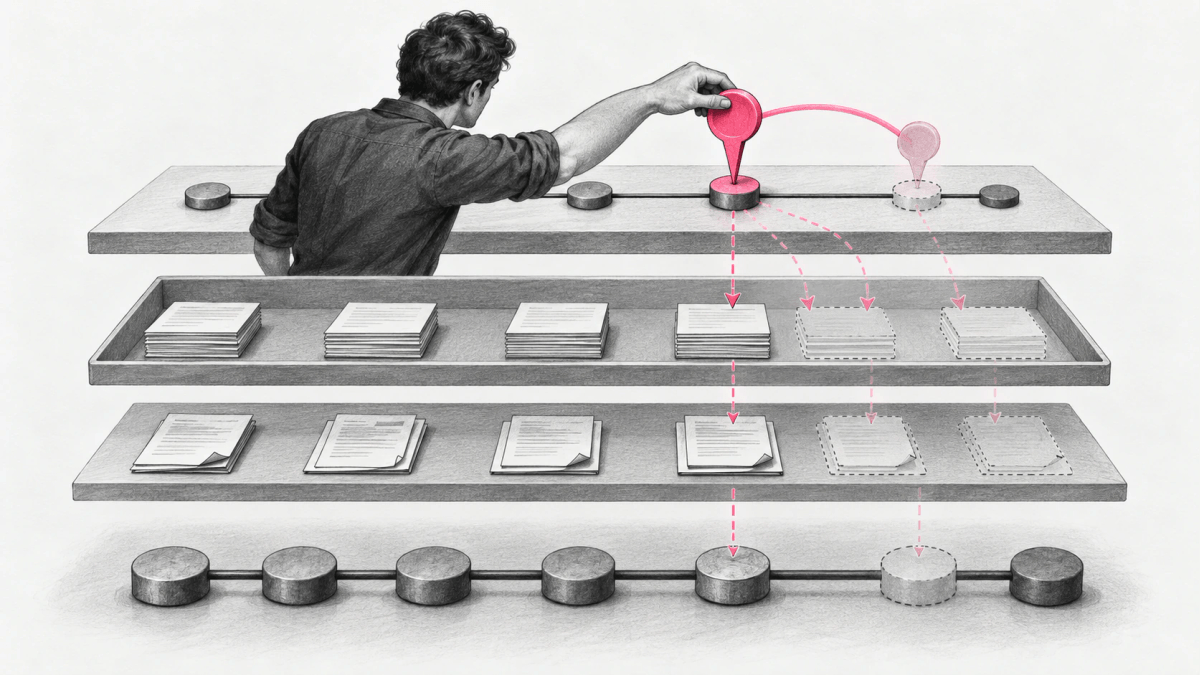
Git tracks 3 places that git reset can change. They are the three trees of Git: the commit history (HEAD), which is the commit the current branch points to; the staging area (index), which holds the snapshot git add prepared for the next commit; and the working tree, which holds the files you edit on disk.
git reset always moves the branch. The mode decides whether the staging area and the working tree follow it. When you run git reset with a file path instead of a commit, it changes only the staged version of that file, which the section on resetting a single file covers.
git reset –soft, –mixed, and –hard
The mode is the first decision in every git reset. The default is --mixed.
| Mode | Branch (HEAD) | Staging area | Working tree | Where your changes end up |
|---|---|---|---|---|
--soft |
Moves to the commit | Unchanged | Unchanged | Staged, ready to commit again |
--mixed (default) |
Moves to the commit | Reset to the commit | Unchanged | In your files, unstaged |
--hard |
Moves to the commit | Reset to the commit | Overwritten with the commit | Discarded |
git reset –soft
--soft leaves the staging area and the working tree as they are. The changes from the commits you moved past stay staged, so the next git commit records them again. Use this to squash commits: with no staged changes, git reset --soft HEAD~5 followed by git commit combines the last 5 commits into 1 commit.
git reset --soft HEAD~5
git commit -m "Add checkout v2"
git reset –mixed
--mixed resets the staging area to the commit and leaves your files unchanged, so nothing is staged afterwards. The changes from the commits you moved past are still in your files as unstaged edits. Use it to rebuild a series of commits with different staging, for example to split one large commit into several.
git reset –hard
--hard resets the staging area and overwrites the working tree with the commit. It may overwrite untracked files, and tracked files that are not in the target commit are removed. Uncommitted edits are lost, because they were never stored in a commit that Git could recover. Run git status and git stash before a hard reset if you are not sure.
–merge and –keep
There are 2 more modes. --keep resets the branch and the files that differ between the target and HEAD, and aborts if one of those files has local changes, so your uncommitted edits in other files survive. --merge mainly exists to back out of a conflicted merge, and it also aborts instead of overwriting unstaged changes.
Find the commit to reset to
git reset takes any commit name. git log --oneline prints each commit on one line with its short hash.
You can also name a commit relative to HEAD. HEAD~1 is the commit before HEAD, HEAD~3 is three commits back, and HEAD^ is the same as HEAD~1. Run git status first, because --hard discards what it shows as modified.
Reset to a previous commit
Undo the last commit with git reset HEAD~1
git reset HEAD~1 undoes the last commit and keeps its changes in your files. The mode decides how much of the commit you keep.
git reset --soft HEAD~1   # keep the changes staged
git reset HEAD~1          # keep the changes unstaged
git reset --hard HEAD~1   # discard the changes
Use the soft form for a commit that was incomplete or had a typo in the message. git reset --soft HEAD^, fix the files, then git commit -a -c ORIG_HEAD commits again starting from the old message. For a fix to the last commit only, git commit --amend does the same in one step.
Reset to a specific commit
Pass the hash from git log to move the branch to that commit. Every commit after it leaves the branch.
git reset --hard 4d5e6f7git reset --hard HEAD~3 removes 3 commits that were bad and that you do not want to ever see again. Do not do this if you have already given these commits to somebody else. If you want to keep the commits for later, create a branch at HEAD first, then reset.
git branch topic/wip
git reset --hard HEAD~3
git switch topic/wip
Reset a branch to match the remote (origin)
To throw away your local commits and make a branch match the remote, fetch first, then reset to the remote-tracking branch. origin/main is the copy of the remote’s main that your repository last fetched.
git fetch origin
git reset --hard origin/main
This discards local commits and uncommitted edits on that branch. The commits stay reachable through git reflog for a while, which the next sections cover.
Reset a single file
With a file path, git reset changes only the staged version of that file and does not move the branch. git reset <pathspec> is the opposite of git add <pathspec>: it unstages the file and leaves your edits in the working tree.
git reset -- path/to/fileThis is equivalent to git restore --staged <pathspec>. To also discard the edits in the file, or to set the file to how it was in another commit, use git restore, because git reset with a path does not touch the working tree.
git restore path/to/file
git restore --source=4d5e6f7 -- path/to/file
git reset with no arguments, the same as git reset HEAD, unstages everything and keeps all edits in your files. git reset --hard HEAD discards all uncommitted changes to tracked files.
Undo a git reset with reflog
git reset does not delete commits right away. They leave the branch and stay reachable through the reflog until the reflog entries expire and garbage collection removes them. A reset moves the branch, and Git records the move. Reflogs record when the tips of branches and other references were updated in the local repository, and HEAD@{2} means where HEAD used to be two moves ago.
Run git reflog and find the line just before the reset; the newest entry, HEAD@{0}, is the reset itself. Then reset back to that entry.
git reset --hard HEAD@{1}Right after a reset, ORIG_HEAD also points to where the branch was. The command sets ORIG_HEAD to the tip of the current branch before the operation, so git reset --hard ORIG_HEAD undoes the last reset as long as no other command changed ORIG_HEAD since.
Recovery has 2 limits. The reflog is local, so it cannot recover commits in another clone. Entries also expire: the git-reflog page gives defaults of 90 days for gc.reflogExpire and 30 days for entries no longer reachable from the branch tip (gc.reflogExpireUnreachable). Edits you never committed are not in the reflog, so a --hard reset over them cannot be undone this way.
git reset vs git revert vs git restore
These 3 commands have similar names. git reset moves the branch tip in order to add or remove commits from the branch, which changes the commit history. git revert makes a new commit that reverses earlier commits. git restore restores files from the index or another commit and does not update your branch.
| git reset | git revert | git restore | |
|---|---|---|---|
| What it changes | The branch, and per mode the staging area and files | Adds a new commit | Files in the working tree or the staging area |
| History | Later commits leave the branch | The original commit stays | Unchanged |
| Safe on a shared branch | No, pushing needs a force push | Yes | Yes, it does not touch commits |
| Typical use | Rework local commits | Undo a pushed commit | Discard or unstage edits to files |
The git revert guide covers reverting one commit, a range, and a merge commit with -m.
Don’t reset public history
Do not use git reset on commits that are already pushed to a shared branch. Never use git reset <commit> when any snapshots after origin/main.
Pushing a reset branch requires git push --force, which replaces the remote branch and drops the commits other people built on. Use git revert to undo a public commit instead: it adds a commit, so a normal push shares it.
Use git reset freely on a local experiment that went wrong. Before you reset, ask whether anyone else could have the commits. If the answer is yes, revert.
Roll back feature flags to an earlier version without rewriting history
The question behind most git reset searches is how to go back to an earlier state. Production configuration such as feature flags raises the same question during an incident, and the same rule applies as for public commits: your customers have already been served the newer states. Incident notes and audit logs point at the versions in between, and moving the pointer back the way git reset --hard does would make those versions disappear from the history.
Loglune rolls back the git revert way instead. Every flag edit is appended to the history as a change event with a seq number, and every publish creates an immutable version with the next number in a sequence that only publishing advances. Rolling back to a published version N appends the edits that make the draft equal version N and publishes them at once as a new version with the same contents. Loglune does not point back to version N, because the newer draft would stay in place and the next publish would bring the same flags back.
Two guards keep the rollback from shipping more than you asked for.
- If the draft holds edits that are not published yet, Loglune returns 409 draft-pending with the list of those edits instead of rolling back, because the publish would ship them too. You publish them, undo them one at a time with revert, or drop them with discard, which appends the edits that put the draft back on the live version. The dropped edits stay in the audit.
- If the live version already equals version N, Loglune returns 409 no-change and writes nothing.
Rollback is a write operation, so each call needs an explicit confirmation argument. The history underneath is an append-only hash chain, and Loglune rejects rewrites and deletions of it.
What the output looks like
We ran the shipped control route on a local test database on October 6, 2026, with editorial example flags. The run created checkout-v2 and promo-banner with default off and published version 1. It switched checkout-v2 to on and published version 2, then switched promo-banner to on and published version 3.
Rolling back to version 1 returned status 200 with "version": 4 and "label": "rollback to v1". The response listed 2 appended events, seq 5 setting checkout-v2 from on to off and seq 6 setting promo-banner from on to off. The publish check against version 3 flagged both changes.
"guard": {
  "status": "compared",
  "against": 3,
  "findings": [
    {
      "kind": "defaultFlip",
      "flagKey": "checkout-v2",
      "before": "on",
      "after": "off",
      "severity": "high"
    },
    {
      "kind": "defaultFlip",
      "flagKey": "promo-banner",
      "before": "on",
      "after": "off",
      "severity": "high"
    }
  ]
}
Next, the run edited promo-banner in the draft without publishing and asked to roll back to version 3. Loglune returned status 409.
{
  "error": "conflict",
  "reason": "draft-pending",
  "pending": [
    {
      "entity": "flag",
      "key": "promo-banner"
    }
  ],
  "hint": "rollback publishes, and a publish ships the whole draft, which holds the unpublished edits listed in pending. Read them with simulate, then publish them, or drop them all with discard (or one at a time with revert and the seqs audit lists), and call rollback again."
}
Discarding the draft returned "version": 4 with "discarded" naming promo-banner and one appended event, seq 8. Rolling back to version 3 again returned status 200 with "version": 5 and "label": "rollback to v3". A diff between version 3 and version 5 returned "flags": [], "segments": [], and "configValues": []: the new version has the same contents as version 3.
The audit for promo-banner listed every event, each with the version that first published it.
| seq | at | default before | default after | publishedIn | What it was |
|---|---|---|---|---|---|
| 2 | 2026-10-06T09:00:02.000Z | null | off | 1 | Created |
| 4 | 2026-10-06T09:00:06.000Z | off | on | 3 | Switched on |
| 6 | 2026-10-06T09:00:08.000Z | on | off | 4 | Rollback to version 1 |
| 7 | 2026-10-06T09:00:09.000Z | off | on | 5 | Edit left in the draft |
| 8 | 2026-10-06T09:00:11.000Z | on | off | 5 | Discard of that edit |
| 10 | 2026-10-06T09:00:12.000Z | off | on | 5 | Rollback to version 3 |
The same audit response ended with the verification result of the history’s hash chain.
"chain": {
  "verified": true,
  "count": 10,
  "legacy": 0,
  "brokenAtSeq": null,
  "head": {
    "seq": 10,
    "hash": "fef7510c13697934b09881a3ceca97027845c207a3bf873006954f6ddd2cc646"
  },
  "anchor": "absent"
}
Versions 1 through 5 all remain, and so do the edit that was refused and the discard that dropped it. In Git terms, the rollback behaves like reverting every commit after version N and committing once, not like git reset --hard to version N.
Choosing how to go back
Use git reset --soft or --mixed to rework local commits while keeping the changes, git reset --hard to discard local work you are sure about, and git reflog to undo a reset. Once commits are pushed, use git revert instead, and use git restore for changes to files. When the state you need to go back to is a set of feature flags rather than a commit, Loglune rolls back to a published version with a new version, refuses to ship unpublished edits with it, and keeps every version in the history.
Roll back flags to an earlier version without a git reset of history
Loglune rolls your feature flags back to a published version N by appending the edits that make the draft equal version N and publishing them at once as a new version. The versions in between stay in the history, because Loglune does not point back to an old version. When the draft holds unpublished edits, Loglune returns 409 draft-pending with the list instead of shipping them. The Free plan costs $0 for 1 seat.