git tag: Create, Push, and Check Out a Release Tag
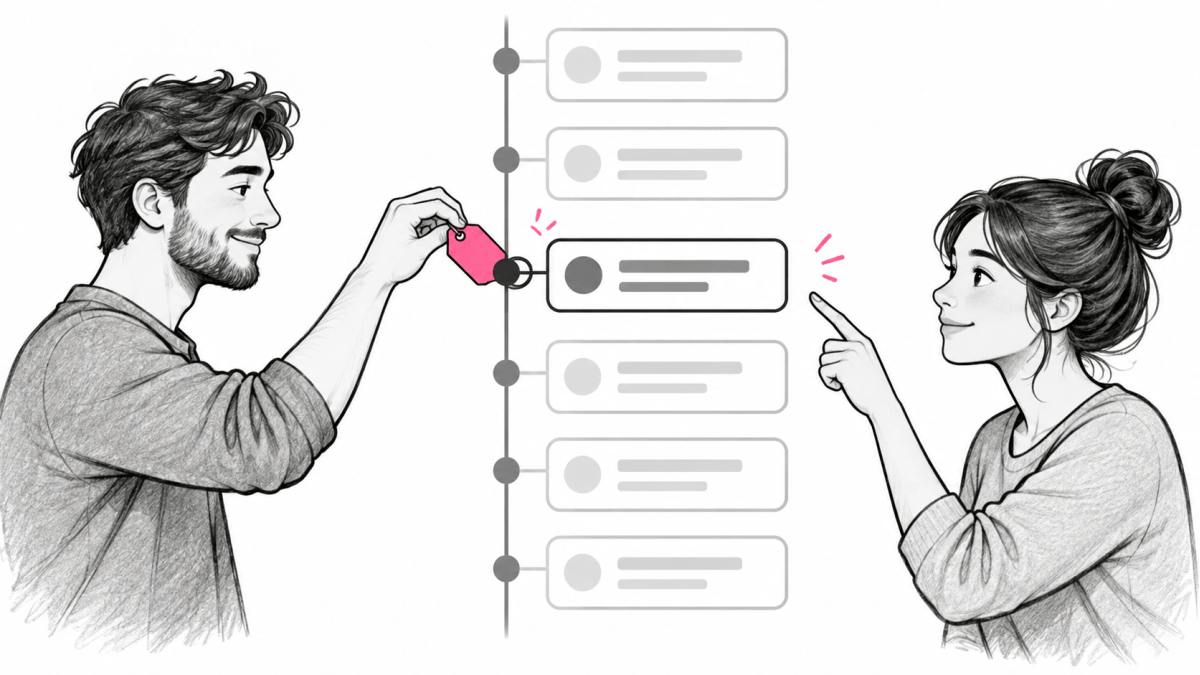
- Annotated git tag
- Lightweight git tag
- Loglune version
git tag is the Git command that creates, lists, deletes, and verifies tags, which are names that point to one commit in a repository’s history. To tag a release, run git tag -a v1.4.0 -m "Release 1.4.0" on the release commit, then share it with git push origin v1.4.0, because a plain git push does not send tags.
This guide is for developers who already commit and push with Git and now need to mark releases so anyone can return to the exact code of a release by name. It shows how to create, list, push, check out, delete, and replace tags, and how a CI/CD pipeline uses them. A tag marks only the code of a release, so the last section shows how a Loglune version marks the feature flag state that release ran with, using output recorded on October 6, 2026. Git internals beyond the refs/tags/ reference are out of scope.
What git tag does
git tag creates, lists, deletes, or verifies tags. A tag is a reference stored under refs/tags/, and it points to an object, usually a commit.
People typically use tags to mark release points (v1.0, v2.0 and so on). A tag differs from a branch in one way that matters for releases: a branch moves forward with each new commit, and a tag keeps pointing to the same commit.
Annotated vs lightweight tags
Git has 2 types of tags. An annotated tag is a tag object with the tagger, date, and message that points to one commit. A lightweight tag is a name for one commit, with no other information.
| Annotated tag | Lightweight tag | |
|---|---|---|
| How to create | git tag -a v1.4 -m "my version 1.4" |
git tag v1.4-lw |
| What Git stores | A full tag object | A name that points to a commit |
| Tagger name, email, and date | Yes | No |
| Message | Yes | No |
| Signing | Can be signed with -s or -u |
No |
Read by git describe by default |
Yes | No |
| Intended use | Releases | Private or temporary labels |
Annotated tags are meant for release while lightweight tags are meant for private or temporary object labels, and commands such as git describe ignore lightweight tags by default. Use an annotated tag for anything you publish.
Create a tag
Create an annotated tag
Pass -a and a message with -m. Without -m, Git opens your editor so you can write the message.
git tag -a v1.4.0 -m "Release 1.4.0"-m or -F without -a still implies -a, so git tag -m "Release 1.4.0" v1.4.0 also creates an annotated tag.
git show v1.4.0 prints the tag data before the commit it points to. For an annotated tag, the output starts with tag v1.4.0, the Tagger: line, the date, and the message, followed by the commit. For a lightweight tag, git show prints only the commit.
Create a lightweight tag
Give a name and none of -a, -s, or -m.
git tag v1.4.0-localCreate a signed tag
-s makes a cryptographically signed annotated tag with your default key, and -u <key-id> uses a specific key. git tag -v v1.4.0 verifies the signature.
git tag -s v1.4.0 -m "Release 1.4.0"
git tag -v v1.4.0
Tag an older commit
By default, git tag tags the commit that HEAD points to. To tag an earlier commit, put its hash after the tag name. This is called tagging later.
git log --oneline
git tag -a v1.2.0 9fceb02 -m "Release 1.2.0"
The commit hash can be the short form that git log –oneline prints. Branch names and expressions such as HEAD~3 also work.
List tags
git tag with no arguments lists every tag. The list is in alphabetical order.
To filter by a pattern, add -l (or --list). -l is mandatory with a wildcard pattern; without it, Git tries to create a tag with that name instead of listing.
git tag -l "v1.8.5*"Alphabetical order puts v1.10.0 before v1.9.0. --sort=v:refname treats tag names as versions, and a leading - reverses the order, so the newest version comes first.
git tag -l --sort=-v:refname "v*"-n prints the first line of each tag’s message next to its name, and --contains <commit> lists only the tags whose history includes that commit. The second form answers which releases shipped a given fix.
git tag -n
git tag --contains a1b2c3d
Push a tag to a remote
By default, the git push command doesn’t transfer tags to remote servers. You push a tag by name, the same way you push a branch.
git push origin v1.4.0To push every local tag that the remote does not have yet, use git push origin --tags. That command sends both annotated and lightweight tags, including private ones you did not mean to share. git push origin main --follow-tags pushes only annotated tags, which matches the rule of using annotated tags for releases.
After the push, anyone who clones or fetches the repository receives the tags.
Check out a tag
To view the files of a release, check out its tag.
git checkout v1.4.0Checking out a tag puts the repository in a detached HEAD state. A commit you make here does not belong to any branch and becomes unreachable except by its exact hash, while the tag stays where it was. To fix a bug on an old release, create a branch from the tag instead.
git switch -c hotfix-1.4 v1.4.0git checkout -b hotfix-1.4 v1.4.0 does the same. The new branch moves forward with your commits, and the v1.4.0 tag keeps pointing to the original release commit. When the fix is ready, tag the new commit as v1.4.1.
Delete a tag
git tag -d v1.4.0-local removes a tag from your local repository only. This does not remove the tag from any remote servers. Delete the remote tag with git push --delete.
git push origin --delete v1.4.0-localThe older form git push origin :refs/tags/v1.4.0-local pushes an empty value to the remote tag name and has the same effect.
Move or re-tag a tag
-f replaces an existing tag with the same name. Use it only on a tag you have not pushed.
git tag -a -f v1.4.0 -m "Release 1.4.0" 7c8d9e0Once a tag is pushed, use a new name. Git does not change tags that other people already fetched, so moving v1.4.0 leaves two copies of “version 1.4.0” that point to different commits. The sane thing is to tag the corrected commit as v1.4.1. If you move a published tag anyway, everyone who fetched the old one has to delete it and fetch the new one by hand.
git tag options
The options used above are: -a, -m, -s, -u, -f, -d, -v, -l, --sort, and --contains. Also available are -F <file>, which takes the message from a file and implies -a; -n<num>, which prints up to <num> lines of each tag’s message when listing; and --points-at <object>, which lists only tags that point to the object.
git tag vs git branch
A tag and a branch are both names for a commit. They differ in whether the name moves.
| Tag | Branch | |
|---|---|---|
| Moves with new commits | No | Yes, to each new commit on the branch |
| Purpose | Marks a point such as a release | A line of ongoing work |
Pushed by plain git push |
No | The current branch, depending on configuration |
| Commit on it after checkout | Detached HEAD; the tag does not move | The branch moves forward |
Tags are not intended for ongoing development. Use a branch for work in progress and a tag for the commit you released.
Use git tags in a CI/CD pipeline
Because a tag names one commit and does not move, a CI/CD pipeline can use tags as release triggers. The CircleCI article Git tags vs branches describes tag filters that run a workflow when a matching tag is added to a commit, for example to deploy to production. GitHub Actions supports the same pattern with a tags filter on the push event, described in the workflow syntax reference.
on:
  push:
    tags:
      - "v*"
A typical release then has 3 steps: merge to main, create an annotated tag such as v1.5.0 on the merge commit, and push the tag. The pipeline builds and deploys exactly the tagged commit, and the tag name becomes the version that release notes and bug reports refer to. The release notes guide covers what to write for each tagged version, and the changelog guide covers the running list of changes across versions.
Tag the feature flag state a release shipped with
Checking out v1.4.0 restores the code of release 1.4.0. It does not restore which feature flags were on when that release ran. When flags live in a separate service, the flag state can change after the tag, and a bug report against 1.4.0 depends on both.
Loglune applies the tag idea to flag state. Each publish turns the draft of flag edits into an immutable version whose number only goes up and is issued only by publish. A publish can carry a label of 1 to 200 characters and a report ID, which work like an annotated tag’s message. A version cannot be moved to a different state, which matches the git-tag advice not to re-tag a release. To correct a release, you publish a new version.
The Git operations have these counterparts in Loglune.
| Git | Loglune |
|---|---|
git tag -a v1.5.0 -m "..." |
Publish with a label and an optional report ID |
git show v1.4.0 / git checkout v1.4.0 |
Inspect version N: its flags, label, report ID, and notes |
git tag -f on a pushed tag |
Not available: a published version does not change |
A new tag for the fix, such as v1.4.1 |
A new version, including a rollback to version N |
| CI builds the tagged commit | Development, CI, or staging evaluates version N with X-Loglune-Version: N |
Notes added after a release do not change it. Loglune’s annotate operation appends a note with the actor and time to a published version, and the label the version was published with, its contents, and its evaluation stay as they were. Rolling back to version N appends the edits that make the draft equal to N and publishes them as a new version, so the bad version remains in the lineage, the same way a fixed release gets a new tag.
Inspecting a version and diffing two versions are read operations, and Loglune does not bill them. Evaluating a past version with X-Loglune-Version: N is available on every plan.
What the output looks like
We ran the shipped control route on a local test database on October 6, 2026, with an editorial example flag. The run created checkout-v2 with default off and published version 1 with the label v1.4.0: checkout-v2 created, off. It switched the default to on and published version 2 with the label v1.5.0: checkout-v2 on for everyone and the report ID REL-1.5.0.
Publishing version 2 returned a check against version 1 that flagged the change.
"guard": {
  "status": "compared",
  "against": 1,
  "findings": [
    {
      "kind": "defaultFlip",
      "flagKey": "checkout-v2",
      "before": "off",
      "after": "on",
      "severity": "high"
    }
  ]
}
Inspecting version 1 after version 2 was live returned the release 1.4.0 state, much like git show v1.4.0 after later commits: "version": 1, "publishedAt": "2026-10-06T09:00:02.000Z", checkout-v2 with "defaultVariationId": "off", and "label": "v1.4.0: checkout-v2 created, off".
Next, the run annotated version 2 with an incident. Inspecting version 2 returned the original label and report ID unchanged, with the note listed separately.
"label": "v1.5.0: checkout-v2 on for everyone",
"reportId": "REL-1.5.0",
"notes": [
  {
    "noteId": "e8395504-a393-4859-b4eb-50f13082e019",
    "actor": "dev@example.com",
    "at": "2026-10-06T09:00:06.000Z",
    "note": "Caused INC-212: checkout errors for EU customers",
    "reportId": "INC-212"
  }
]
Rolling back to version 1 returned "version": 3 with "label": "rollback to v1", one appended edit ("seq": 3, defaultVariationId "on" before and "off" after), and a check that flagged "before": "on" and "after": "off". Diffing version 1 and version 3 returned empty lists for flags, segments, and config values, with "findings": []: version 3 has the same state as version 1, and version 2 is not removed from the lineage.
Choosing how to tag a release
Use annotated tags for releases, push each one by name or with --follow-tags, and create a new tag instead of moving one that others have fetched. Check out a tag to read a release, and create a branch from it when you need to fix one. When a release also depends on feature flags, publish a Loglune version with the same release label, so the code and the flag state of each release can both be read by name later.
Mark the flag state each release shipped with, the way a git tag marks its code
A git tag marks the code of a release, not the feature flags it ran with. Each publish in Loglune creates an immutable version with a number that only goes up, plus an optional label and report ID, so you can read the flag state of any release by number. Inspect a version, add notes to it after the fact, or roll back to it as a new version. The Free plan costs $0 for 1 seat and keeps 7 days of history.